Create Companion
We’re continuing to update this guide. Some screenshots, features, and instructions may reflect an earlier product version and differ from the current interface. For help, contact support@pulsarfuture.com.
Create Companion is for setting up and managing AI characters that can be used in AI Companion.
Before You Start
AI companion features require email activation. After the device is bound to an email address, custom companions and official recommended characters are associated with that email.
If the device has not been activated yet, see Device Token and Email Activation.
1. Create an AI Character
Use Create Companion when you want to set up a personalized AI character instead of using only the official recommended characters.
- Connect the device and enter the main screen.
- Tap
Create Companion. - Choose the companion's visual style, appearance, personality, and voice.
- Save the companion.
- Return to
AI Companion.
Choose a Visual Style
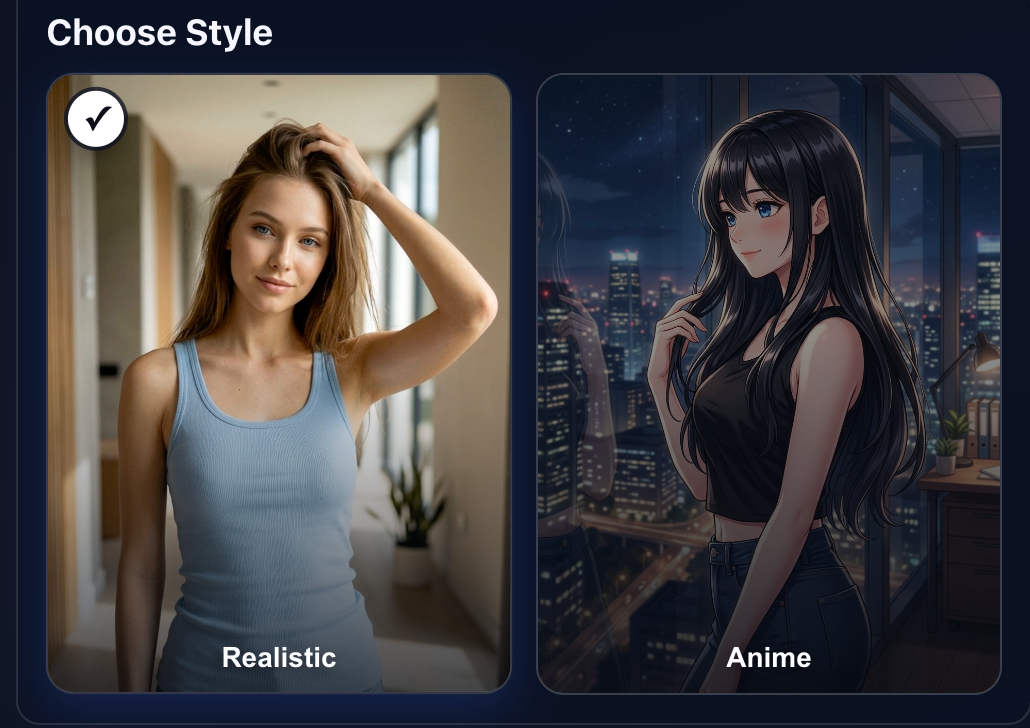
Start by choosing the companion's visual style. Pulsar supports both realistic and anime-style companions. The selected style changes the available appearance options in the following steps.
Choose Ethnicity
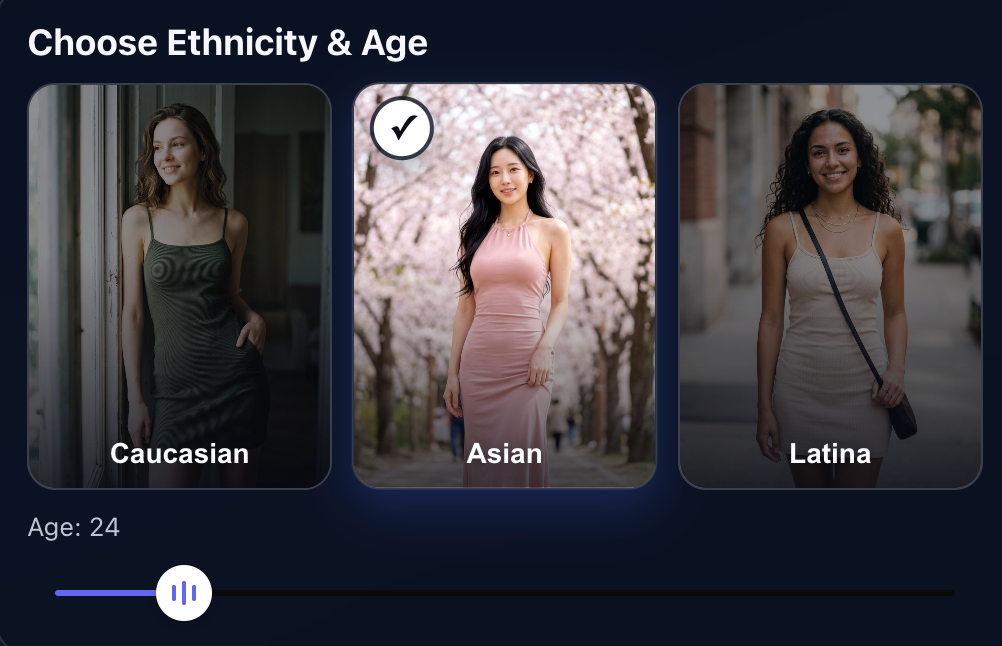
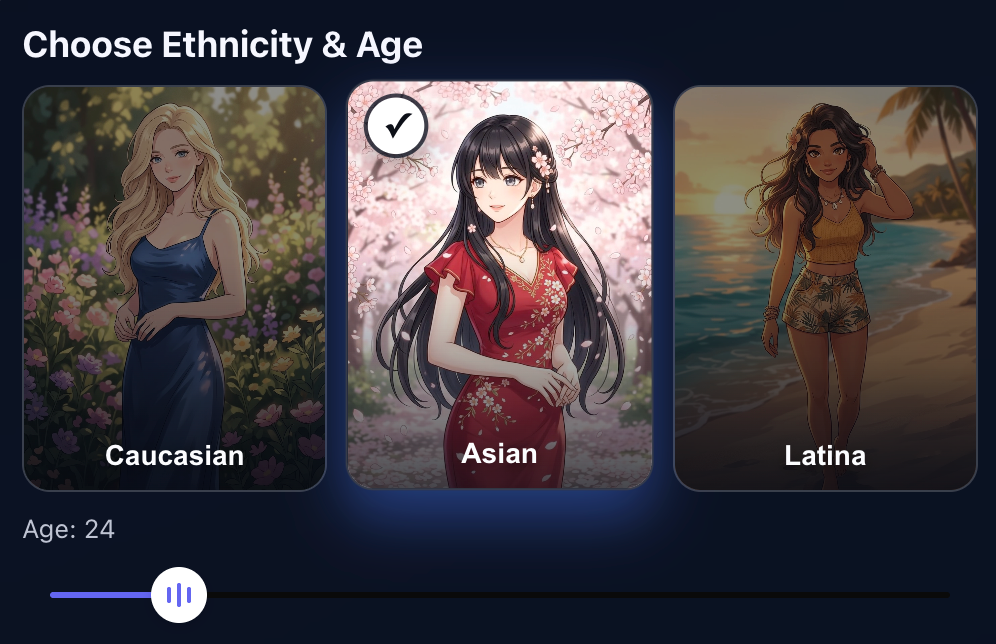
After choosing a visual style, select the companion's ethnicity. Realistic and anime styles may offer different ethnicity options and visual presets.
Customize Appearance
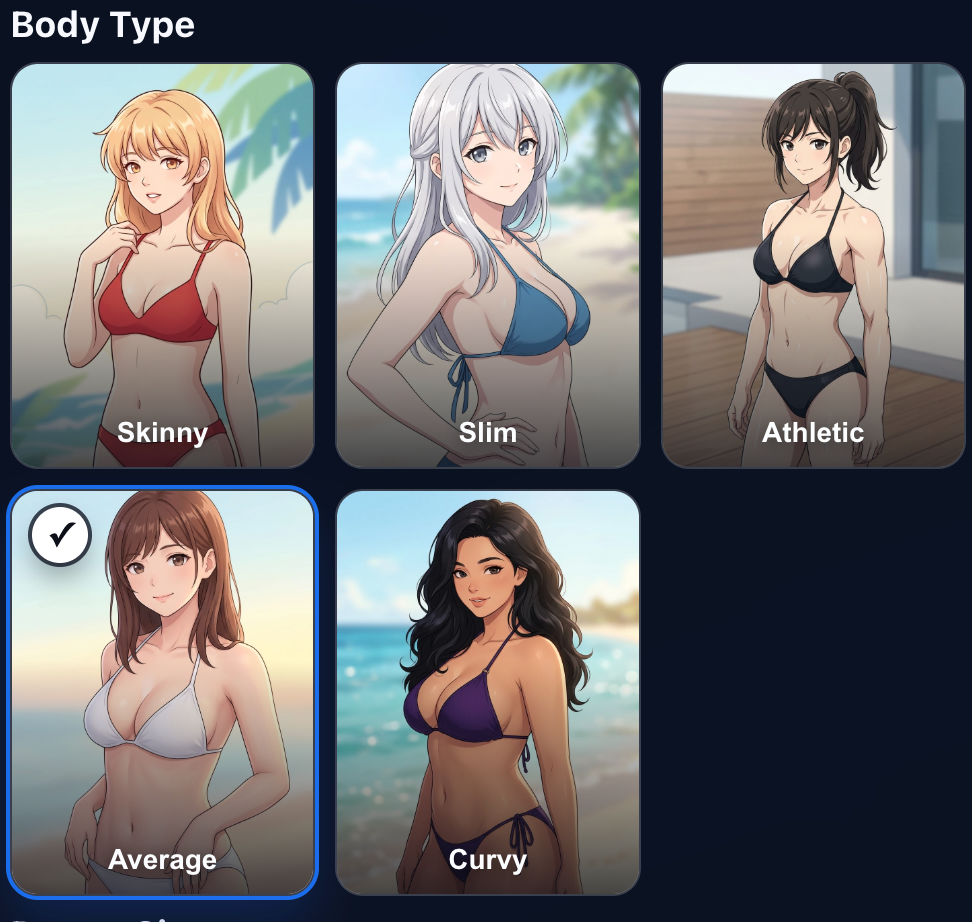
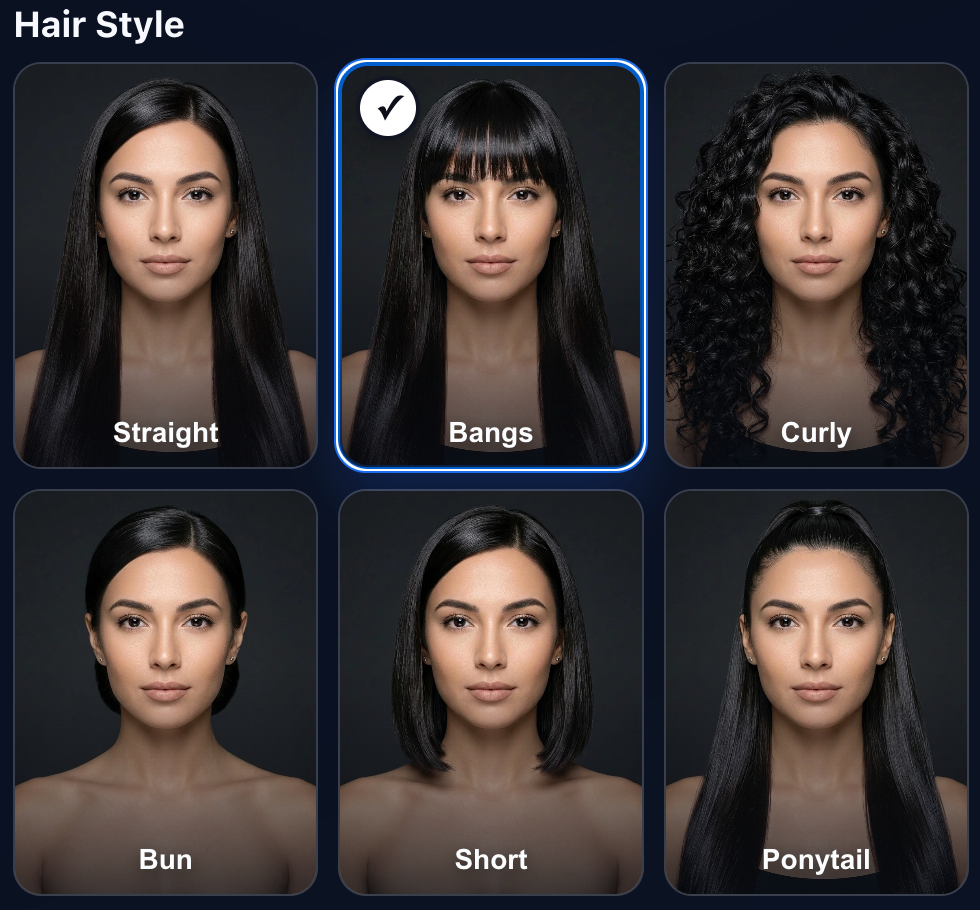
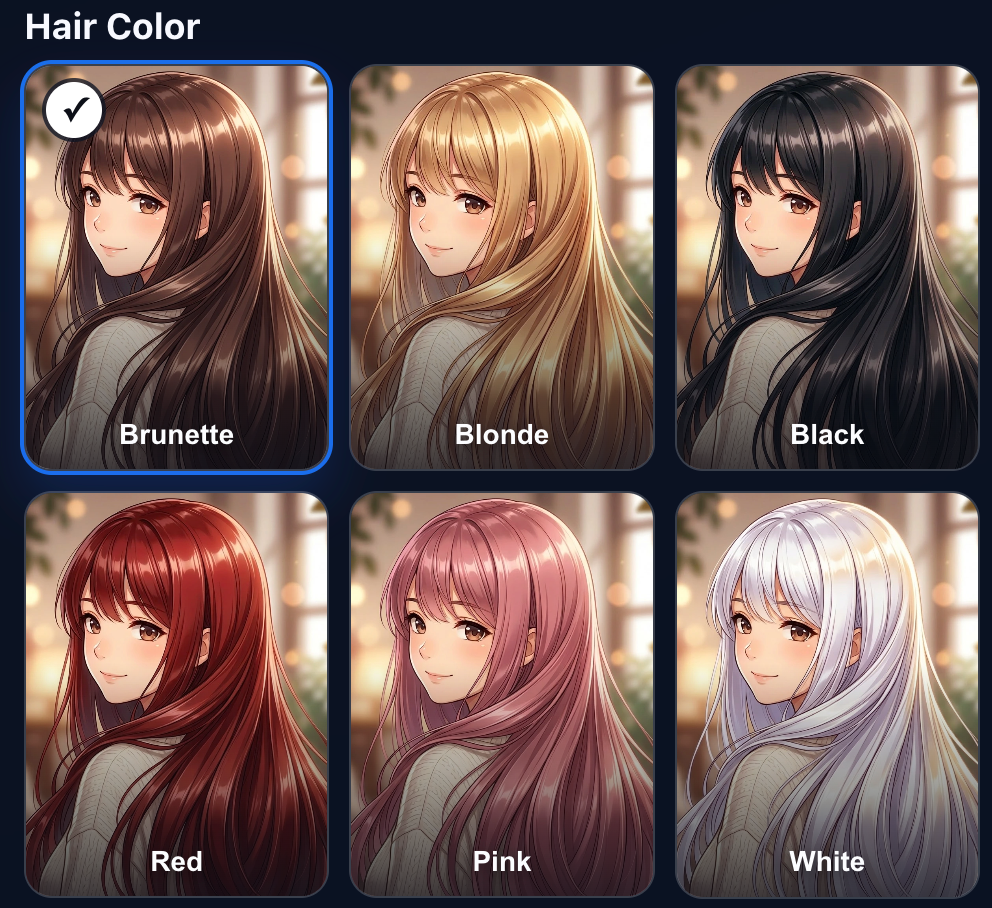
Next, adjust the companion's appearance. Depending on the selected style, the available options can include body type, hairstyle, and other visual details.
Set Personality and Voice
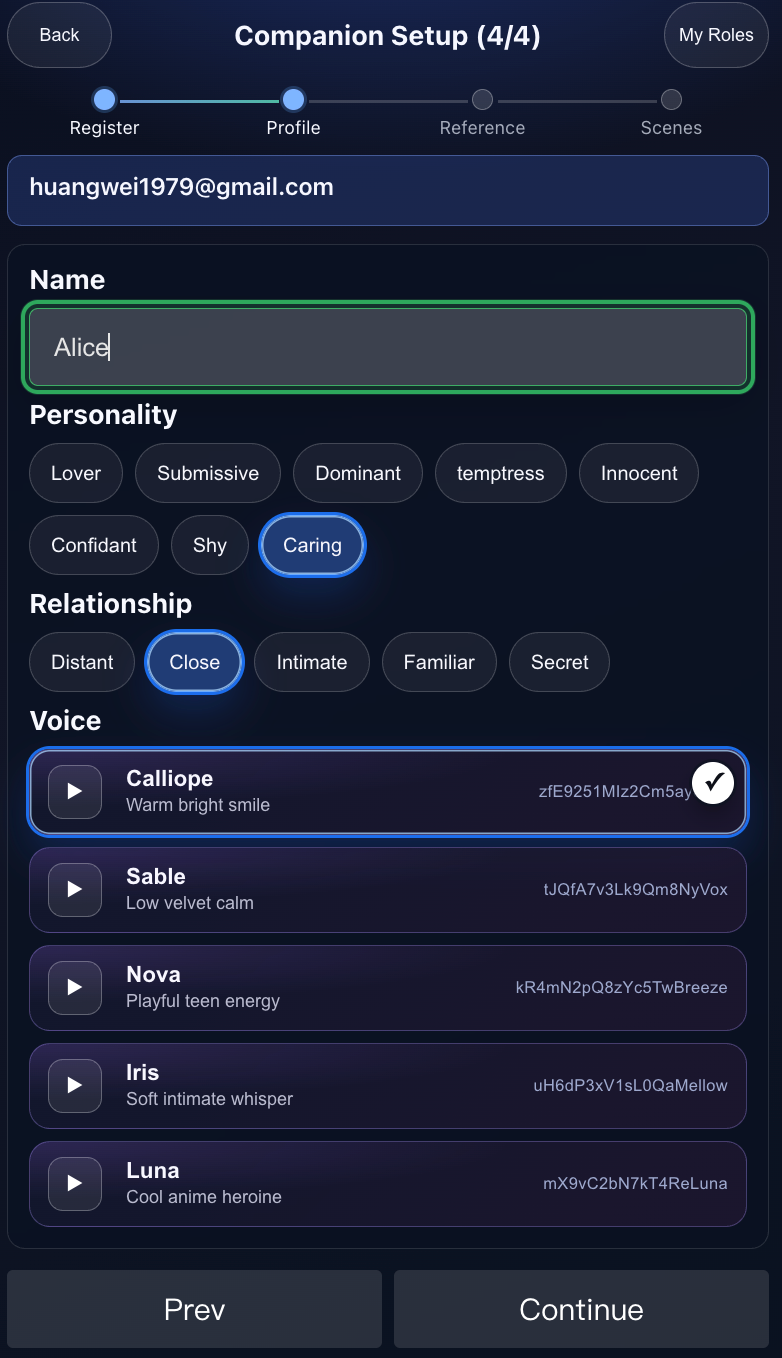
Personality and voice define how the AI companion interacts with the user. These settings influence the companion's conversation style, voice tone, pacing, and how the companion guides device rhythm during AI Companion sessions.
Choose a personality and voice that match the kind of interaction style the user wants. A gentle companion, a more playful companion, and a more direct companion can feel different in both voice conversation and motion rhythm control.
Wait for the Companion to Become Ready
After the companion is saved, Pulsar uses AI models to generate the companion's images and videos. This can take some time.
During generation, the companion status may show as prepared. The companion can be used after the status changes to ready.
The user can continue using other Pulsar features while the companion is being generated.
2. View Created Companions in My Role
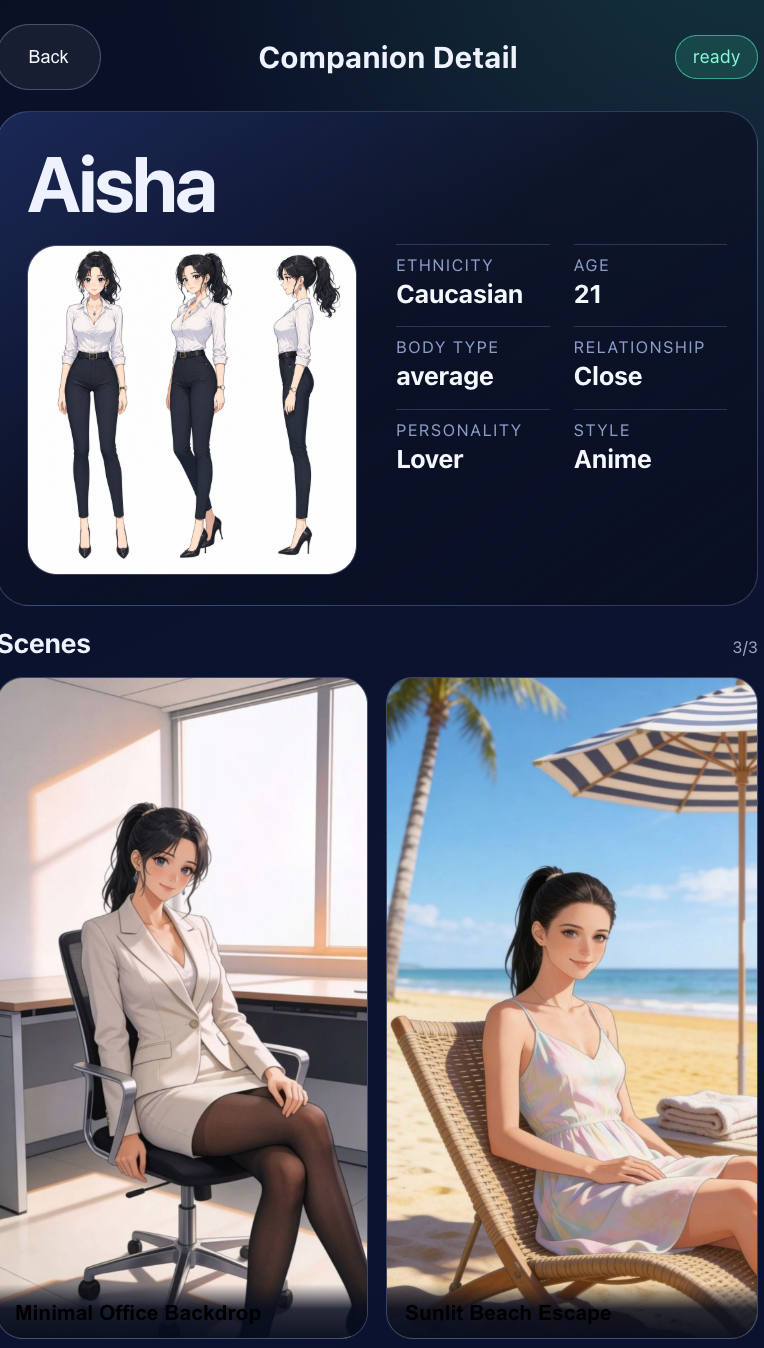
After creating companions, open My Role to view the user's custom companions and their current status.
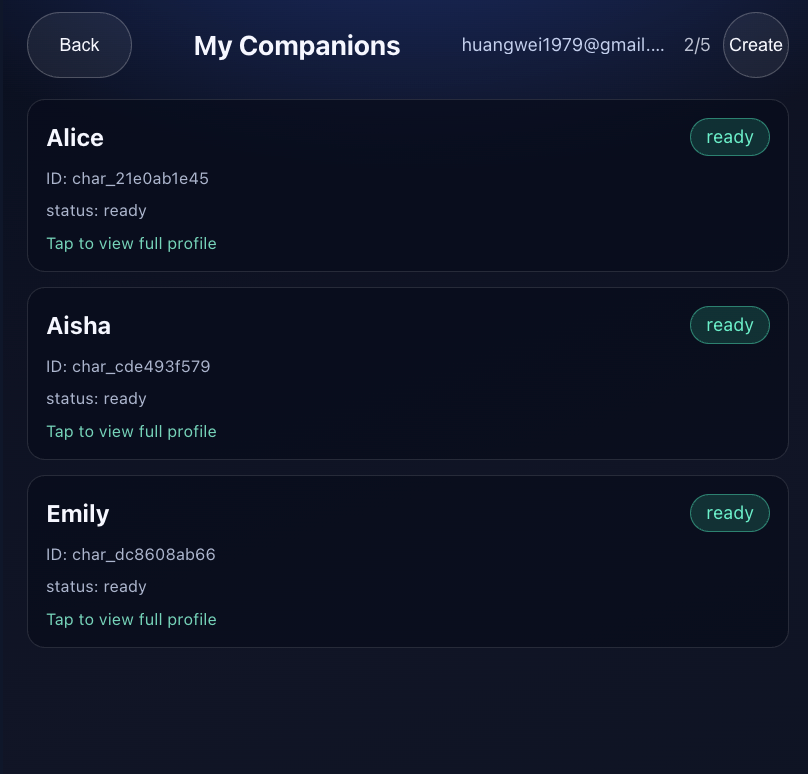
Select a companion to view details, including the companion profile and available scenes.
3. Use an AI Character
In AI Companion, select a custom companion or an official recommended character.
The AI character can interact with the user and work with the system's machine-learning-based expert technique simulation system to control device movement.
Official Recommended Characters
You can also use official recommended characters in AI Companion. Both custom companions and official recommended characters follow the activated email address.
Next Step
After creating or selecting a companion, review AI Companion to see how AI Companion works as a control mode.